Advanced AI-Powered Patent Analysis, NLP Keyword Extraction, and Secure Innovation Tools
Secure AI-Powered Patent Analysis
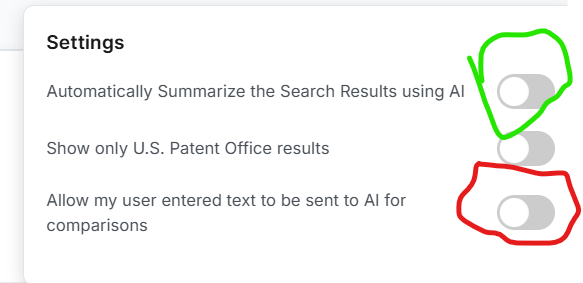
The First ON/OFF button circled in Green enables “Automatic Summarize the Search Results using AI.” We believe this First Option is safe for you to use because your results documents are all “published and publicly available documents” on the Internet. This should be true for our current Google Patents search site and any future search sites we expect to add such as Google Scholar. Submitting search results text to OpenAI API will not divulge your proprietary Input Text.
The Third ON/OFF button allows us to submit your Input Text to our secure OpenAI API and is initially set to NOT SUBMIT any Input Text, to OpenAI or your own AI LLM if you choose to use one (see below.) You may turn this button ON if you trust us to properly set our OpenAI API to keep your Input Text secure.
When this third Option is ON, we will query our secure OpenAI API with a query that includes your Text to get an AI Summary of your Input Text to compare with text the same as we do with each Search Results texts. In addition, we submit your text along with the AI Summary of each Search Result text. In addition, we also create an AI Comparison of your text with each Search Result text. This gives you a quick analysis of the similarities between any of your inventive ideas that are also contained in each results document.
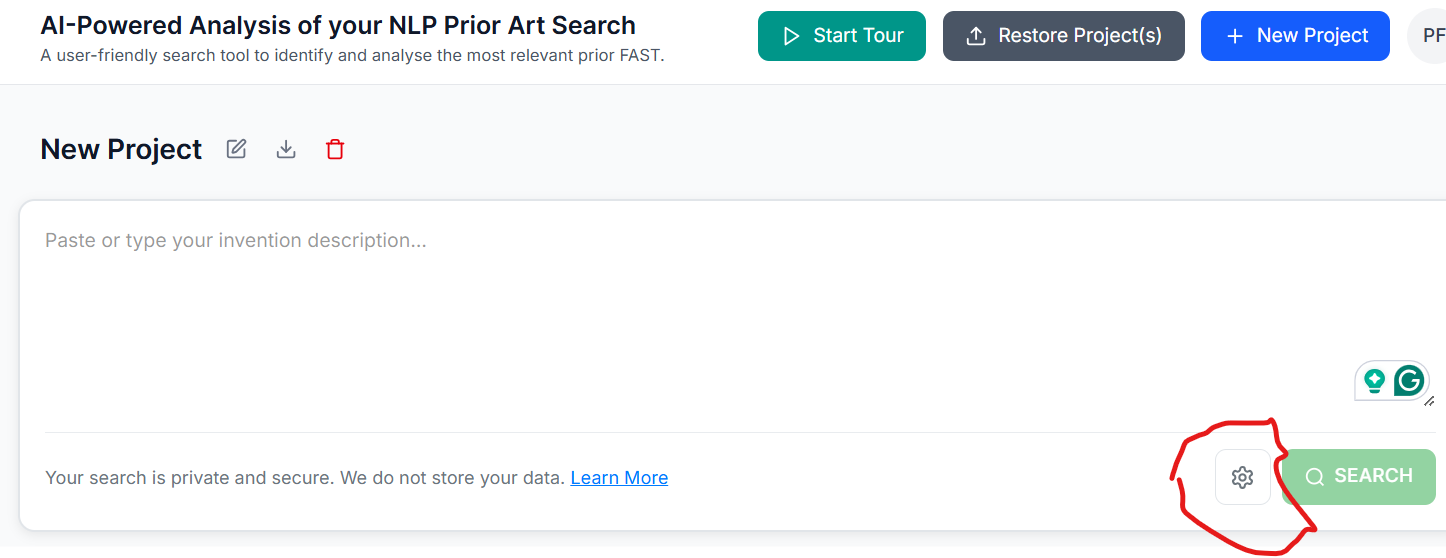
Give our AI Comparison a try! Use one of your patents or applications to see how it works. Just copy and paste the text from the patent’s Abstract plus the initial Description down to the Brief Description of Figures into our Search input screen and click search to send your Input Text to our Keywords Extraction process. We automatically use those top 30 Confidence Value Keywords to perform an automatic Google Patents search and AI Analysis. Please let us automatically know how your test turns out.
All our features labeled “AI,” such as text AI Summarization of each search result text and AI Comparisons of your Input Text with each Search Result text are processed securely using our OpenAI APIs. For your privacy, OpenAI may temporarily retain data only for abuse detection and monitoring purposes. Importantly, your data is never used to train OpenAI models. Their privacy policies are designed to minimize data retention and prevent any reuse beyond its intended purpose.
If you would like even more control over your AI data processing, you can choose to use your organization’s own OpenAI API key and we will submit your text to your OpenAI API. To learn more or set this up, please reach out to our Customer Service using customer.service@searchrealfast.com
Natural Language Processing - NLP – of our Statistical Keyword Extraction
Search Real Fast uses a statistical approach called the Chi-Square-Ratio Test to identify and extract keywords from your input text. Here’s how it works.
Sentence-Level Analysis
Our Keyword Porcess scans your full input text and identifies each sentence or long, multiword segments to be processed as sentences to compute a Confidence Value a word is an “Important Word.”

Important Word Detection
SRF Keyword Detection statistically identifies “important words” which are words that frequently co-occur with other “important words” within the same sentence of your Input Text.
Chi-Square-Ratio Confidence Values
Each word is scored based on how statistically significant its co-occurrence is with other words in each sentence. This score is called the Chi-Ratio confidence value that indicates the statistical.
Top Keywords Returned
The top 30 “important words” with the highest confidence values are selected and returned as the primary keywords.
These 30 Keywords are used for the initial query to Google Patents for relevant patents and patent applications. If submitting all 30 Keywords to a Search site does not return any results, then some of the lowest confidence keywords are removed and the remaining keyword are submitted again. This “lowest score” keyword removal process is repeated until at least 10 search results are returned.
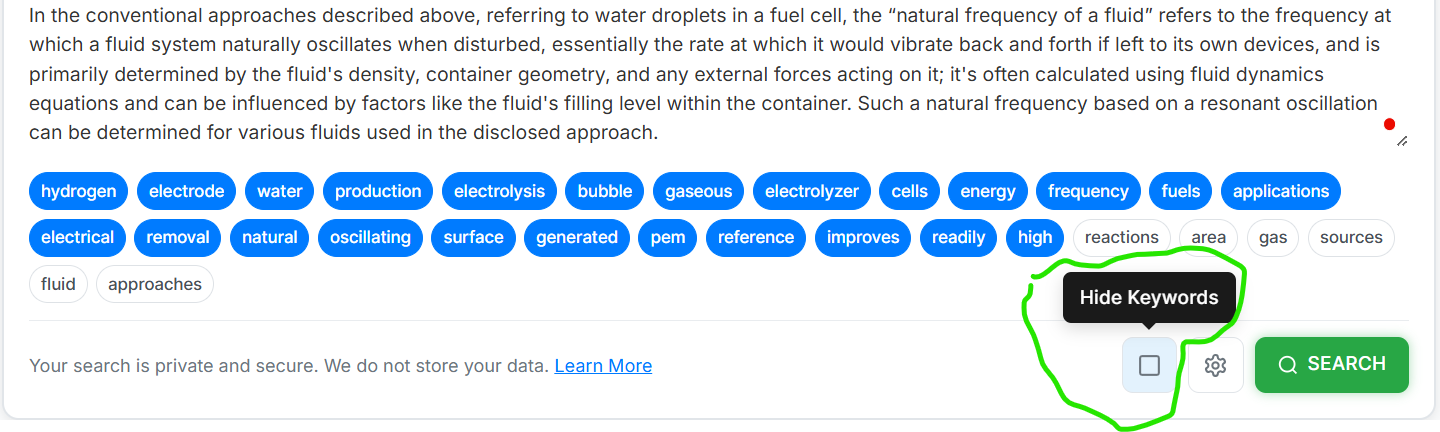
All 30 Keywords are shown in the area below your Input Text when you click the square Show Keywords icon. Any keywords NOT used to return the results document listed not highlighted. You may click on a Keyword to deselect or reselect some of the Keywords. Then click the Search button gain to see which keywords significantly change the number of research results.